


IPTV on Fire TV Stick: install and set up an IPTV player
A Fire TV Stick turns almost any TV into an IPTV TV. With Finally, your channels, the TV guide and your movies and series are right on your remote. Setup takes about ten minutes, once.
Check first: can your Fire TV install apps?
Some new models run Amazon’s new system Vega OS. On those, only apps from the Amazon Appstore can be installed, so Finally can’t either. This affects:
- Fire TV Stick 4K Select (2025)
- Fire TV Stick HD, 2nd generation (2026)
- Fire TV Stick 4K, 3rd generation (2026)
Here’s how to tell: Settings › My Fire TV › About (on a Fire TV smart TV: Device & Software › About). If the software says “Fire OS”, everything works as described below. If it says “OS 1.x”, it’s Vega OS. In that case you can use Finally on your phone and cast to another TV with Chromecast.
Fire TV Stick HD (2024), 4K Plus, 4K Max, Fire TV Cube and Fire TV smart TVs work.
Step 1: Get the Downloader app
- 1Choose the magnifying glass on the home screen and search for Downloader.
- 2Download the app with the orange icon (by AFTVnews). It’s free.
Step 2: Allow installing from Downloader
- 1Open Settings › My Fire TV › About.
- 2Press OK seven times on the first entry (your device’s name) until a message says you’re already a developer.
- 3Go back once. “My Fire TV” now has Developer Options.
- 4Turn on Developer Options › Install unknown apps › Downloader. On older devices it’s called “Apps from Unknown Sources”.
It sounds more technical than it is: you only allow the Downloader app to install an app. Nothing else changes.
Step 3: Install Finally
- 1Open Downloader and enter watchfinally.com/apk in the address field. It’s shorter with the code shown on our download page.
- 2The file downloads. Then choose Install and open Finally.
- 3Downloader asks whether to delete the downloaded file: Delete. It’s no longer needed.
Step 4: Add your playlist, no typing
On first launch, Finally shows a QR code. Scan it with your phone camera and enter your login details on your phone, for example by copying them from your provider’s email. The TV takes them over by itself. Of course, you can also enter them with the remote.
What you need: Xtream Codes login, M3U link or M3U file. Here’s what each one looks like.
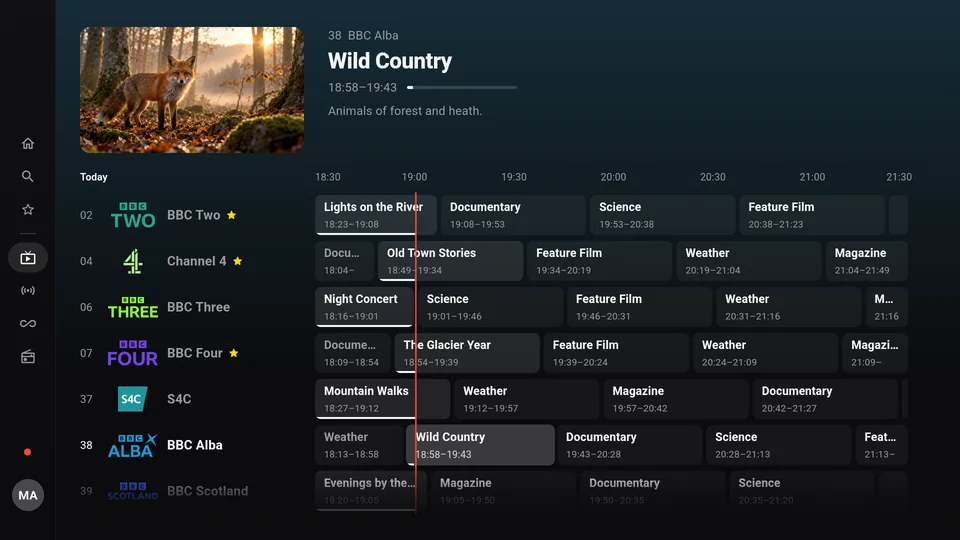
With the remote
- The arrows move you through channels, guide and media library, OK starts playback.
- OK in the player opens the bar with pause, audio and subtitles, guide and “From the start”.
- Long-press OK on a channel to open its menu, for example for favorites.
- Back takes you one step back.
If something goes wrong
- “Downloader” doesn’t show up in search: check above whether your device runs Vega OS.
- Developer Options don’t appear: press the device name under “About” again, quickly in a row.
- The picture stutters: the stick often sits behind the TV, far from the Wi-Fi router. An HDMI extension cable or a network adapter helps. More tips against buffering.
- Very large playlist: older sticks have little memory. Finally loads large lists bit by bit, so the first launch takes a little longer.
Questions
Why isn’t Finally in the Amazon Appstore?
Not yet. Until then, you install Finally with Downloader directly from watchfinally.com. Finally tells you about new versions itself.
Is it OK to install apps with Downloader?
Yes. Amazon offers the setting exactly for this. But only download apps from sources you trust, and Finally only from watchfinally.com.
Can I keep watching on Fire TV what I started on my phone?
Yes, with an account and PRO. Favorites, progress and playlists come along to all your devices, encrypted. Here’s how it works.
Does Finally cost anything?
The basic features are free and need no account: live TV, TV guide until midnight, search, favorites and parental controls. PRO adds multiple playlists, the full week guide and multiview, among other things.
Updated: October 24, 2026